v3.1 · Chromium Sidebar Extension

Thank you for installing
QuickClip Pro

Your clipboard just became a command centre. Snippets, counters, tags, images - all in a persistent sidebar.

Explore Products How to Use →
Finding QuickClip Pro useful? A 5-star review helps keep it free forever.
100%
Local & Private
0
Servers
Snippets
Free
Forever

By akasumitlamba

More tools you
might love

Same philosophy - focused, private, no bloat, no subscriptions.

Demo GIFs

See it in action

Animated walkthroughs of the core features and workflows.

Saving Snippets
Save & tag your clips
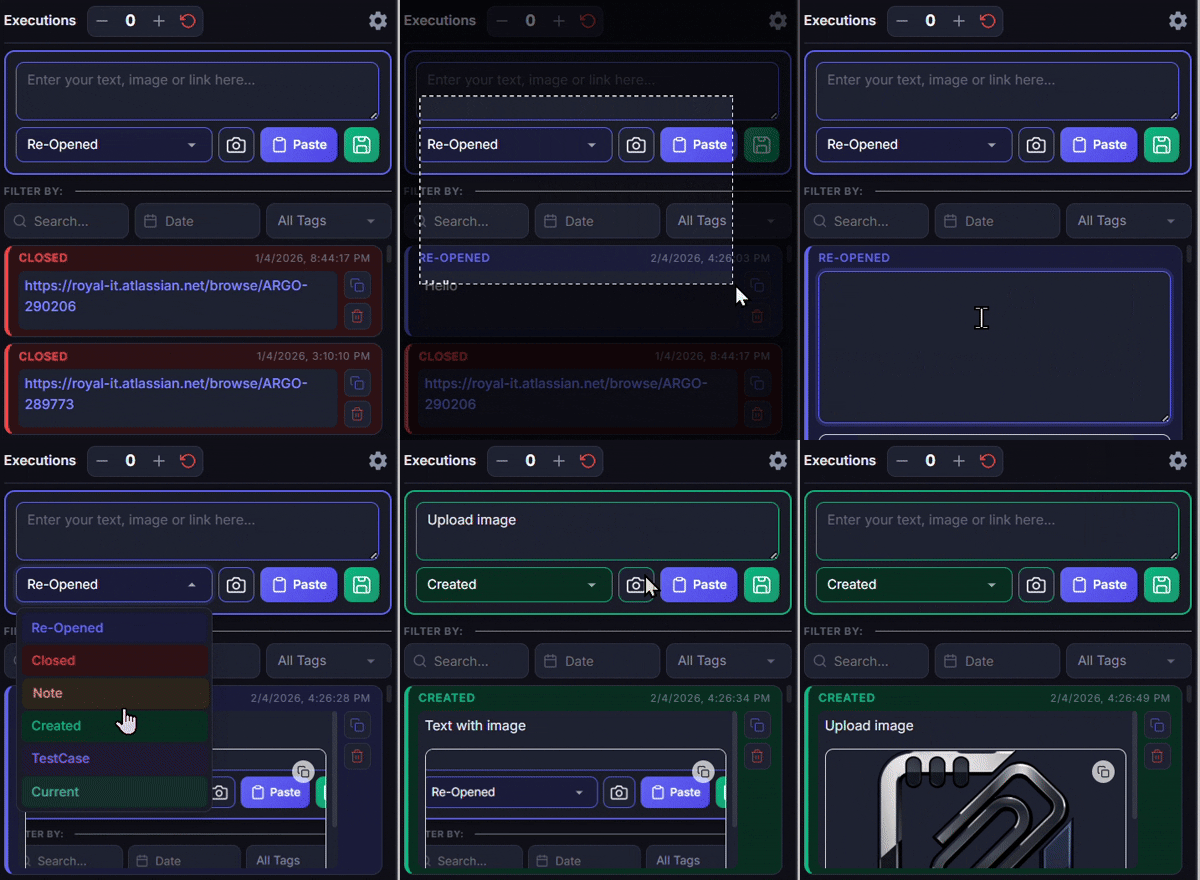
Type anything, pick a tag, hit Save - or use Paste to clipboard-read in one tap. The counter tracks repeated tasks automatically.
QuickClip Pro
Saving snippets demo
Search & Filters
Search, date & tag filters
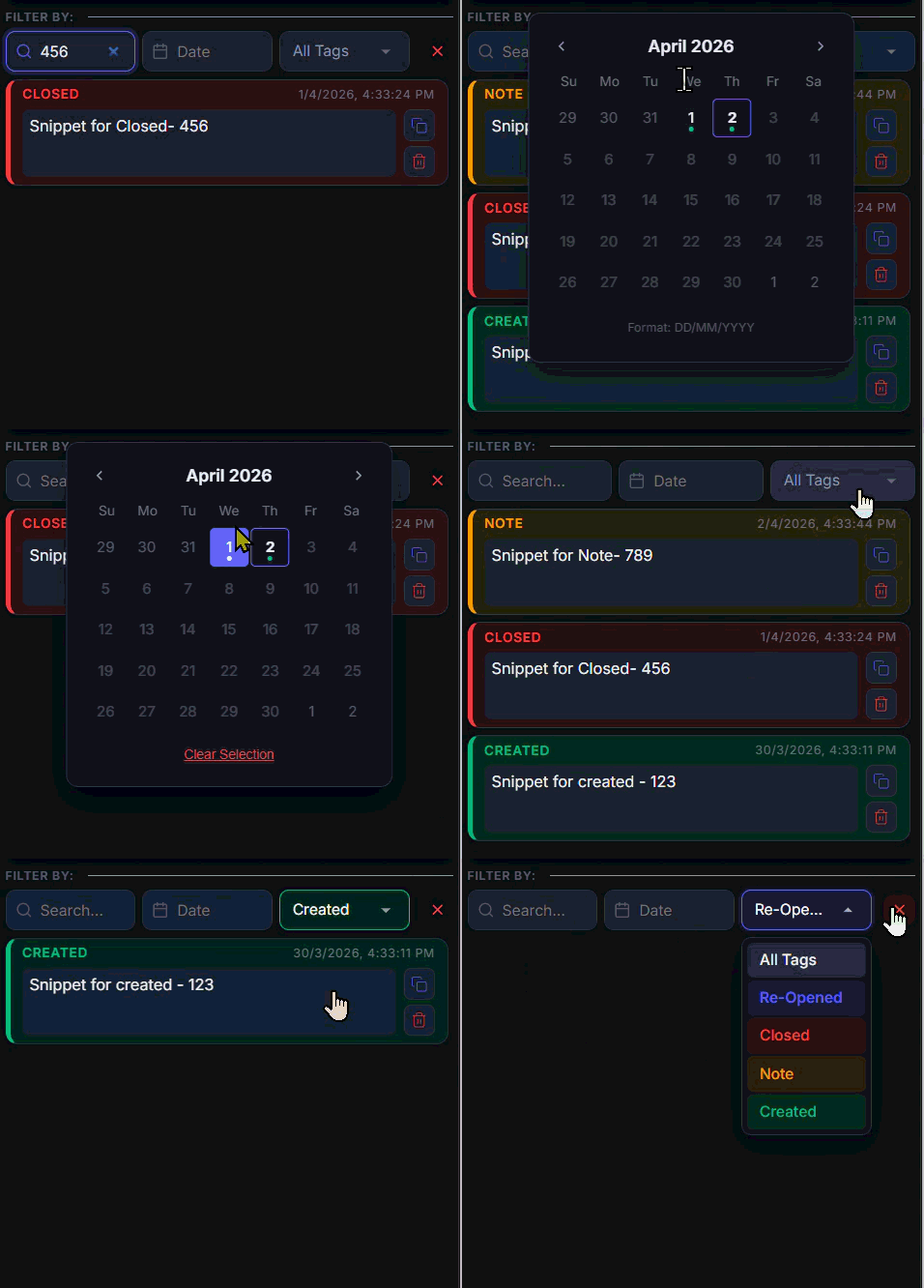
All three filters work together in real time. Type, pick a date, or narrow by tag - instant results, zero reloads.
QuickClip Pro
Search and filters demo
Settings Panel
Customise everything
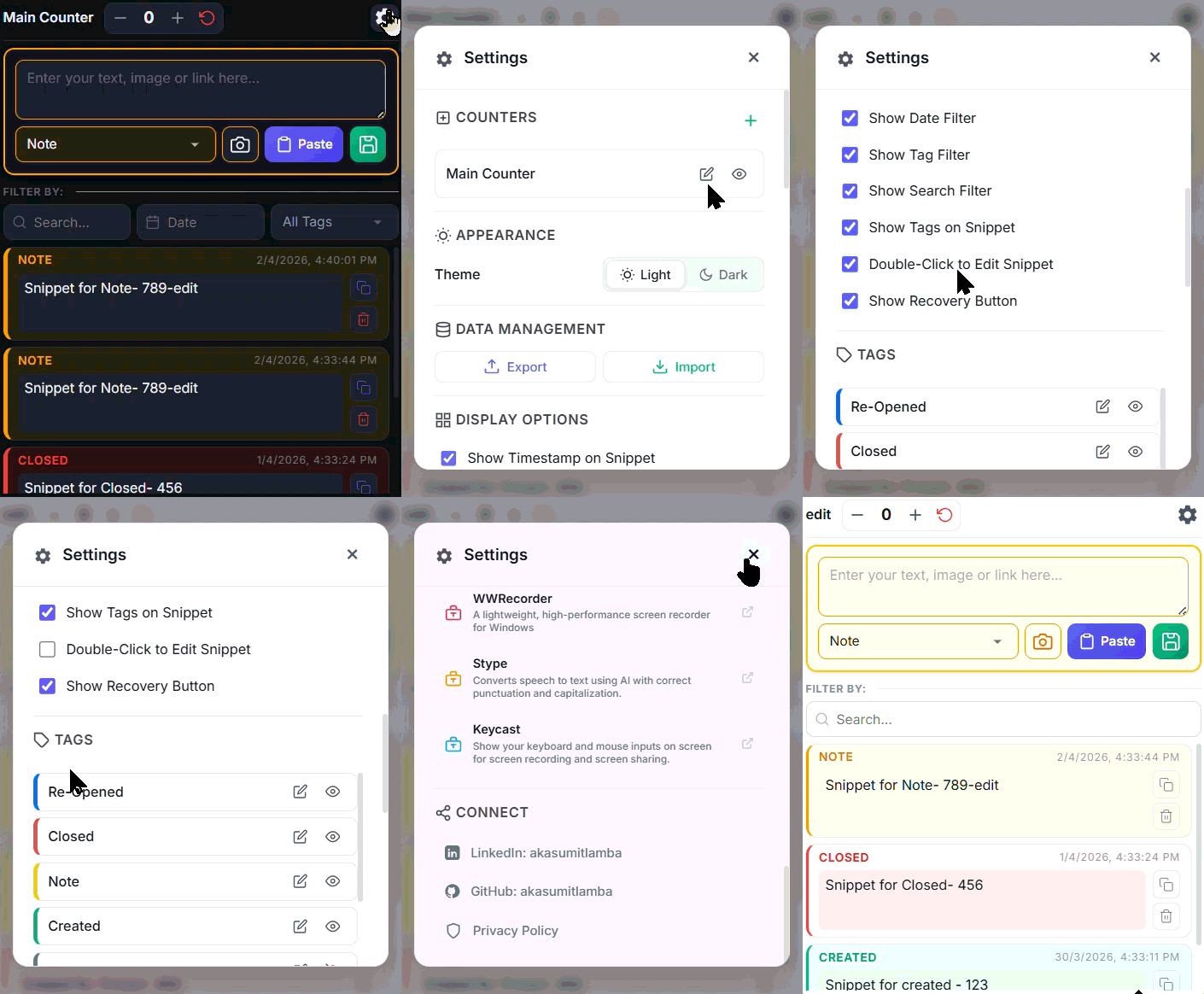
Toggle display options, add counters, manage tags, switch themes, and back up your data - all from the gear icon.
QuickClip Pro
Settings panel demo
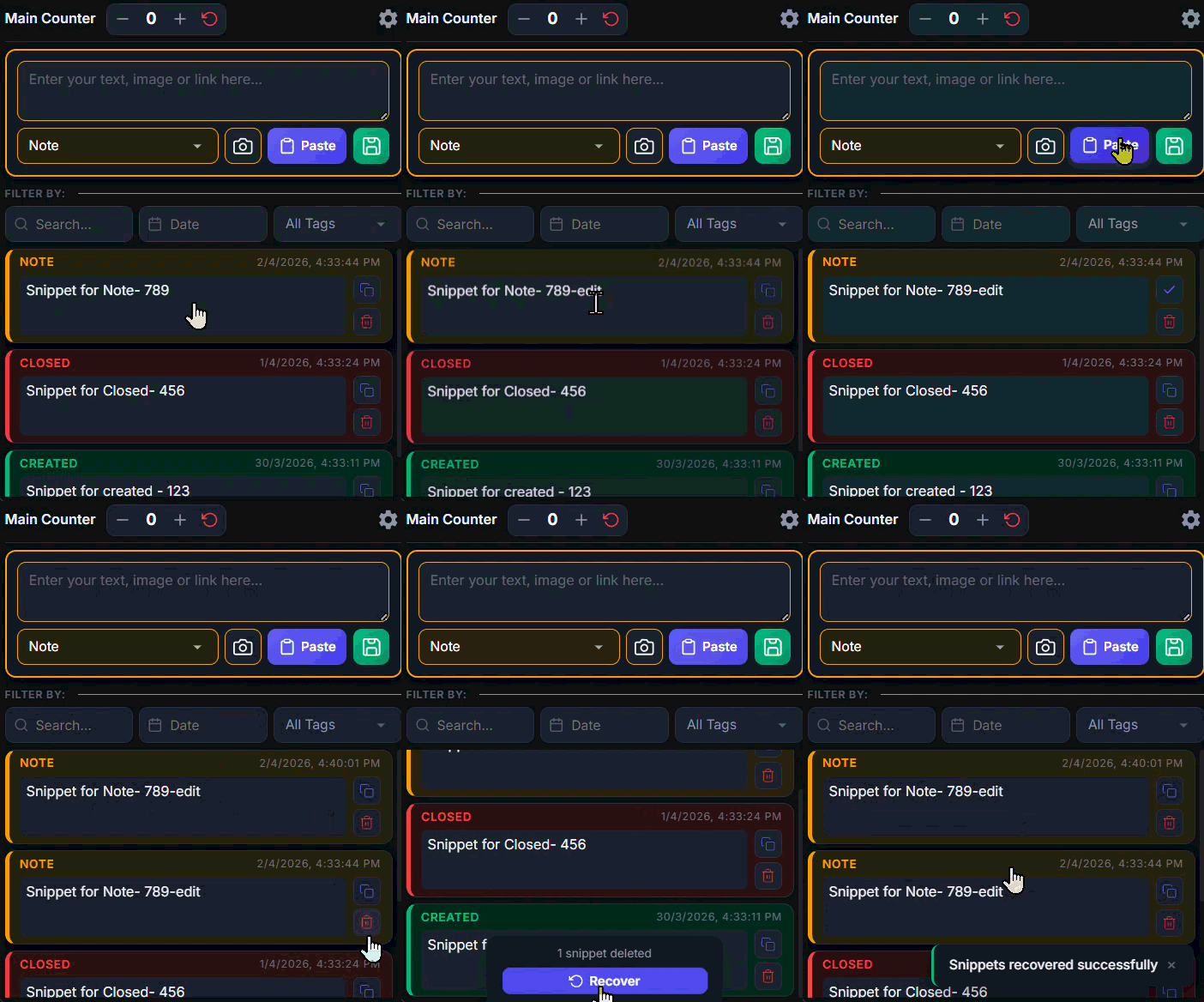
Managing Snippets
Tags, copy & delete
Every snippet shows its tag, timestamp, copy and delete buttons. Double-click to edit inline. Links auto-detect and become clickable.
QuickClip Pro
Managing snippets demo

How to Use

Nine steps to
clipboard mastery

01
Install & Pin
After installing from Chrome or Edge store, click the puzzle-piece icon, find QuickClip Pro and pin it. Click the pinned icon to open the sidebar - it stays open while you browse.
Toolbar → Pin → Click to Open
02
Save a Snippet
Type or paste any text, URL, or image. Select a status tag from the dropdown, then hit Save. Use Paste to clipboard-read and save in one tap. Links auto-detect and become clickable.
Type → Tag → Save OR Paste & Save
03
Manage Snippets
Click to copy instantly. Click to delete. Double-click any snippet text to edit inline - saves automatically when you click outside. No extra steps.
Double-click to Edit · Click outside to Save
04
Execution Counter
The Execution Count in the header tracks repeated tasks. Hit + to increment, to decrement, reset icon to return to zero. Create multiple mini-counters in Settings.
+ / − /Reset · Mini-Counters in Settings
05
Search & Filter
Use the search bar to find by content, the calendar picker to filter by date, or the tag dropdown to narrow by status. All three filters work simultaneously in real time.
Search · Date · Tag - all real-time
06
Settings
Click the gear icon in the header. Add/rename/hide mini-counters, create custom tags, toggle light/dark/system theme, show or hide individual UI elements.
→ Counters · Tags · Theme · Display
07
Add Images
Click the camera icon in the input area to upload an image. Stored locally alongside text - great for UI mockups, screenshots, or any visual reference.
Camera → Upload → Save
08
Export & Import
In Settings → Data Management, click Export Data to download a JSON backup. Click Import Data to restore. Always export before importing - import overwrites current data.
→ Data → Export / Import JSON
09
Custom Tags
Create up to 8 custom tags with different colors. In Settings → Tags, rename any tag and choose from multiple color options. Perfect for project, priority, or workflow categorisation.
→ Tags → Rename & Color (8 available)